How to Secure a WordPress Site: A Step-by-Step Guide
Protect your WordPress site with updates, strong logins, two-factor authentication, backups, a firewall and sensible file permissions. Clear steps, no jargon.

Picture a small bakery site that suddenly starts redirecting visitors to a pharmacy spam page. The owner did roughly what a typical blog post tells you to do: a security plugin, a password that felt “strong-ish,” and WordPress updates whenever someone remembered they existed. What nobody did, because nobody said it mattered, was delete an old slider plugin that had been deactivated years earlier and was still sitting on the server, switched off but very much alive and reachable by anyone who knew where to look.
That pattern is far more common than the dramatic hacking stories suggest. Most WordPress sites are not compromised because someone chose them specifically; they are compromised because something small got left exposed and nobody noticed until the damage had already spread. If you genuinely want to secure a WordPress site, you have to stop treating it like a one-time checklist and start treating it as layers, where each one exists to cover a gap the last one missed.
Why You Need to Secure a WordPress Site in the First Place
WordPress runs a huge share of the web and has for years, and that scale is exactly why attackers do not hand-pick victims the way we instinctively imagine them doing. They run automated scripts that scan millions of IP addresses at once, hunting for version numbers, exposed login pages, and known plugin paths that match a database of flaws. You are not a target in any personal sense. You are a line in a spreadsheet, and I mean that literally rather than as a figure of speech.

The data supports this, because vulnerability trackers keep finding the same pattern year after year: most WordPress security flaws live inside plugins and themes, not in WordPress core itself. Read that twice if it helps it sink in, because it reframes the whole problem. The core software is not what puts you at risk. Your plugins are.
Attackers look for three things above everything else, and they are not subtle about it: outdated extensions with publicly documented flaws, login pages with no rate limiting, and reused passwords that leaked from some completely unrelated breach years earlier. Once a vulnerability goes public, exploit tools tend to get written within hours, so if you have not patched by then, you have essentially put up a sign inviting the attempt.
None of this is abstract once it happens to you. Search engines blacklist infected sites, and getting removed again can take months of cleanup work and reconsideration requests that go nowhere fast. E-commerce sites lose transactions by the hour while this unfolds, and professional malware removal can run far more expensive than a hosting upgrade would have, before you even count lost revenue or a GDPR headache if customer data got exposed along the way.
If your site is a hobby blog with twelve readers, I will admit the calculus looks different, because you still do not want to be a node in someone else’s malware network, but you can reasonably skip the heavier, enterprise-grade controls. Run WooCommerce, though, and the stakes jump sharply. I would not treat those two situations the same way, and honestly, I do not think you should either.
The Three Layers That Actually Secure a WordPress Site
Security advice tends to arrive as a flat list of twenty disconnected tips, and I think that format actively misleads people, because it is not how real attacks unfold. Attacks move in sequence, probing one weak point and then the next, and if a single layer holds firm, the whole attempt usually fails right there.

Layer one is access: your login page, your user accounts, your hosting panel, and your database credentials, since most compromises start in exactly this spot. Layer two is the application itself, meaning WordPress core, plugins, themes, file permissions, and configuration, which is where the actual vulnerabilities tend to live. Layer three is the perimeter, covering firewalls, CDNs, rate limiting, and bot filtering, and it exists to stop automated traffic before it ever reaches your server in the first place.
Miss a single layer and you have left a gap, and automated scanners exist purely to find gaps like that. So let’s go through each one in turn.
Layer 1: Lock Down Access
Start with the login page, since that is where the volume concentrates. Brute force attempts are one of the most common threats a WordPress site faces, and fortunately they are also among the easiest to stop cold once you know what to look for.
Kill the “admin” username first, because WordPress used to default to it, and if you still have an account literally named admin, you have handed an attacker half the credentials for free before they have even started guessing. Create a new administrator under a different name, log in as that account, delete the old one, and reassign whatever posts it owned.
Use a password manager, not because you lack the imagination to come up with one clever password, but because you actually need dozens of unique ones spread across WordPress, hosting, your database, FTP, your DNS registrar, and email, and a breach at any single point in that chain can cascade into every other one.
If I had to pick just one thing from this entire piece, it would be two-factor authentication without hesitation. It adds a second step after your password, usually a code generated by an app on your phone, so a leaked password alone becomes worthless to whoever is holding it. Password leaks happen constantly, often from platforms that have nothing to do with your site, and attackers replay those stolen credentials automatically across thousands of targets hoping for a match somewhere.
Limit login attempts too, locking out an IP address after a set number of failed tries, which helps against a single determined address but will not stop a serious attacker, since distributed botnets simply rotate addresses to get around per-IP limits entirely. Treat rate limiting as one layer sitting alongside two-factor authentication rather than a substitute for it.
Review your user roles while you are at it. WordPress ships with Administrator, Editor, Author, Contributor, and Subscriber, and the Administrator role can install plugins, edit raw code, and delete anything it wants, so do not hand it out casually. A guest writer needs Contributor, not Admin. A developer on a one-week project needs temporary access, not a permanent login that quietly outlives the project by three years.
One catch worth flagging honestly: lose your phone and your backup codes at the same time, and you are locked out of your own site with nowhere to turn. Store those backup codes somewhere that is not your phone. A password manager entry works fine for this.
Layer 2: Harden the Application
This is where the plugin problem actually lives, and it deserves more attention than it usually gets in the typical five-minute security checklist.
Update everything, and prioritize by actual risk rather than alphabetical order. WordPress auto-installs minor and security releases to core, though major releases still need your approval, so do not sit on those indefinitely. For plugins, check weekly at minimum, and when a security patch drops for something you depend on, apply it immediately, even if you would normally test it in staging first, because the gap between a patch going public and someone exploiting it gets measured in hours.
Not every update deserves the same urgency, which is a nuance a lot of advice skips over. Many disclosed vulnerabilities never turn into practical threats at all, while a smaller set of highly exploitable flaws genuinely deserve immediate action the moment you see them. A low-priority cross-site scripting bug in a plugin you rarely touch can wait a day. A critical authentication bypass cannot wait an hour.
Delete what you do not use, because deactivated plugins still sit on your server with their files fully readable and their code fully exploitable, and abandoned ones never get patched again once the developer walks away. If a plugin has not been updated in over a year and does not work cleanly with your current WordPress and PHP versions, remove it. The same logic applies to themes: you need one active theme and maybe a fallback, not seven sitting around collecting dust.
Never use nulled plugins. Pirated premium plugins are a classic malware vector, and beyond the obvious legal problem, you have no real idea what is actually in that code, and you will never receive a single security update because you do not hold a valid license. Get your extensions from WordPress.org or directly from the vendor instead.
Set file permissions properly, with directories generally at 755 and files at 644, and never at 777, which is world-writable and means any compromised process on the server can rewrite your files at will. Your wp-config.php file should be locked down as tightly as your host allows, though the exact numbers depend on whether your web server user owns the files or a separate deployment user does, so ask your host if you are not sure.
Disable file editing in the dashboard by adding this to wp-config.php:
define('DISALLOW_FILE_EDIT', true);That removes the built-in plugin and theme editor, closing one easy route for anyone who already has admin access, though it is not a complete fix by any means, since administrators can still install plugins or themes, and a malicious package can carry PHP that runs directly on the server regardless. Treat this as hardening, not a guarantee.
Hide your version number, which is not real security on its own, but it quiets down the scanners that are hunting for specific vulnerable versions of core or popular plugins.
Disable XML-RPC if nothing on your site actually needs it, since it powers some mobile apps and remote publishing tools but also doubles as a brute force amplification vector. If something genuinely depends on it, rate-limit it instead of killing it outright.
And do not disable the REST API globally. This advice circulates constantly, and I think it is mostly wrong, because the block editor, plenty of plugins, and headless setups all depend on it functioning normally. Restrict the sensitive endpoints with authentication instead of switching the whole thing off.
Layer 3: Filter Traffic Before It Arrives
A web application firewall sits between your site and the open internet, inspecting requests and blocking known attack patterns before they ever land on your server. Plenty of security plugins and CDNs already bundle this kind of filtering, so check what you already have before paying for yet another layer of it.
Here is the trade-off nobody mentions enough: aggressive WAF rules break things, blocking legitimate crawlers, payment provider webhooks, and occasionally your own editors trying to log in from a new coffee shop. Start in monitoring mode if your tool offers one, watch what gets flagged for a week, and only then switch on active blocking.
Choose hosting that takes security seriously, because this matters more than any single plugin you will ever install. Look for actively supported PHP versions (if your host still offers PHP 5, leave immediately), account isolation on shared plans, server-level firewalls, DDoS protection, automated malware scanning, and a clear policy on what happens the moment they catch an infection. Managed WordPress hosts typically handle more of this for you at a higher monthly cost, and for a lot of site owners, that trade is genuinely worth paying for.
Enable HTTPS, since many hosts hand out free certificates now and there is not much excuse left not to. Without one, login credentials and form submissions travel in plain text, and browsers will flag your site as “Not Secure,” which tends to kill conversion rates fast.
Backups: The Control You Will Actually Need
Backups do not prevent hacks. What they determine is whether an incident costs you an afternoon or a month of your life.
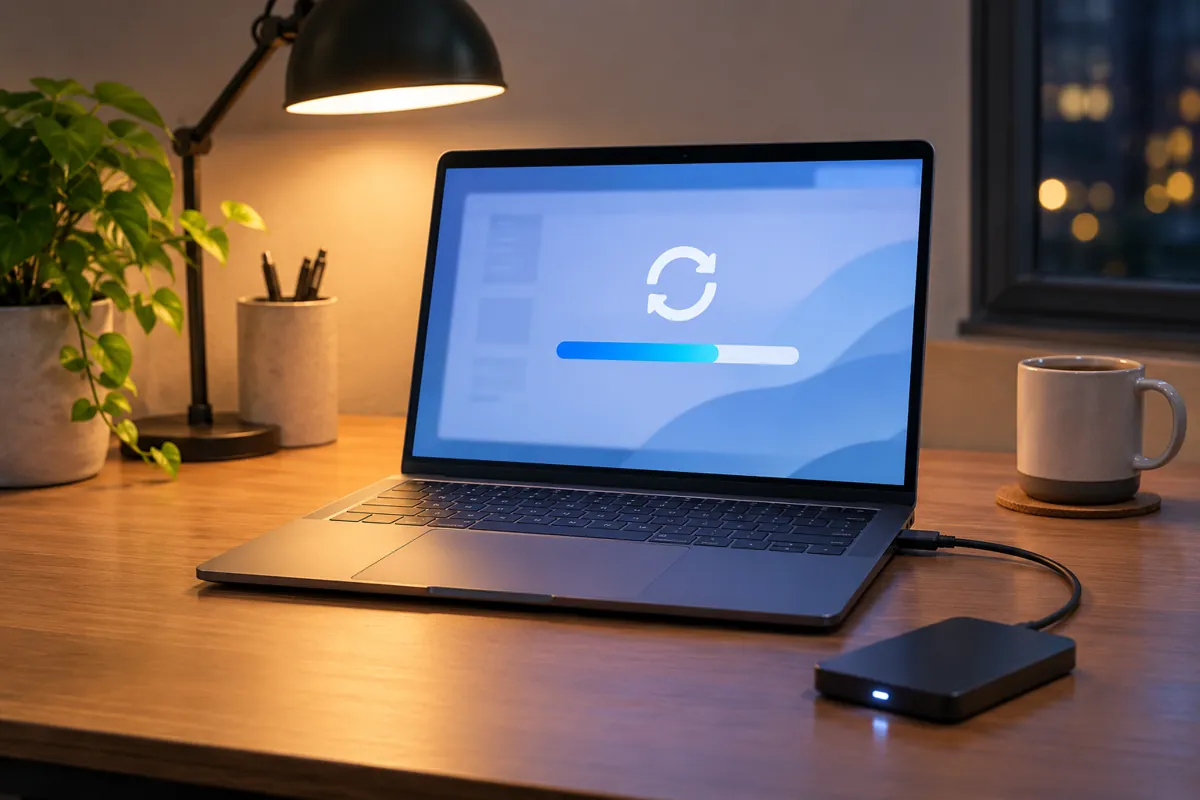
Follow a 3-2-1 pattern: three copies, two different media, one off-site, which in practice usually means your host’s own backup, a plugin-based backup stored in cloud storage, and ideally an immutable copy sitting somewhere a compromised site could never reach even if it tried.
Store backups encrypted and keep them off the server itself, because a backup sitting inside your wp-content folder gets encrypted right alongside everything else in a ransomware-style attack, which defeats the entire point of having made it.
Then test a restore, not just the backup job itself. Run it against a staging site every quarter. A backup that fails during recovery is worse than no backup at all, because you built your entire response plan around something that was never going to work when you needed it.
What to Do If You Have Already Been Hacked
Isolate the site first by putting it into maintenance mode or taking it offline entirely, because you do not want to keep serving malware to visitors while you figure out what happened.
Change every credential from a clean device, including WordPress admin passwords, hosting, database, FTP, and anything else connected to the account, and revoke every active session and application password while you are at it. Figure out how they got in before you restore anything, because skipping that step just puts you back in the exact same spot within the week.
Restore from a backup you have verified predates the compromise, patch the entry point, and then watch the site closely for a few weeks, since persistence mechanisms are common and attackers like to leave a quiet way back in.
If customer data was exposed, you may have legal notification obligations under GDPR or similar laws, and that is a conversation for a lawyer rather than a guide like this one.
Frequently Asked Questions
Are WordPress security plugins enough on their own? No. They handle detection, rate limiting, and firewall rules reasonably well, but they do not replace updates, secure hosting, least-privilege accounts, backups, or two-factor authentication. I’d treat a plugin as one layer, never the whole wall.
Should I turn on automatic updates? For security releases on a low-risk site, yes, without much hesitation. For a complex or revenue-critical site, use staging, backups, and a rollback plan before letting updates run unattended, since a bad release can break your site at 3 a.m. with nobody watching it happen.
How fast should I patch a vulnerability? Immediately, if it is actively exploited or critical, no question. Otherwise, prioritize by exploitability, whether the affected functionality is actually exposed, and whether a fix even exists yet, because plenty of vulnerabilities sit unpatched for long stretches after disclosure, which tells you something uncomfortable about how many site owners are running behind.
What file permissions should WordPress use? Directories at 755, files at 644, as a reasonable starting point, and never 777 under any circumstances. The exact numbers depend on your server’s ownership model, so check with your host if you are on a managed or shared plan.
Should I change my login URL? It can cut down on automated noise, sure, but it does not fix an underlying vulnerability, so I would not treat it as a substitute for two-factor authentication and rate limiting.
Can a CDN or WAF stop every attack? No. It handles network-level and web-level attacks reasonably well, but it does nothing about a stolen admin password, a malicious insider, or a vulnerable plugin getting exploited through a request that is already authenticated.
How do I know if a plugin is abandoned? Check the last update date, compatibility with your current WordPress and PHP versions, support forum activity, and the quality of the changelog, because if the developer has gone quiet about security fixes, that silence is your answer.
The Habit That Actually Keeps a Site Safe
Securing a WordPress site is not a project you finish once and forget about; it is a maintenance habit that has to keep running in the background, which means updating weekly, reviewing accounts monthly, testing your backups quarterly, and staying honest about what is actually still installed on your server. The sites that get compromised are almost never the ones running sophisticated defenses. They are the ones where somebody forgot about a plugin from three years ago and never thought about it again.
Start with two-factor authentication and a password manager today, delete the plugins you do not use this week, and set up off-site backups this month. That sequence alone puts you ahead of most of the sites the automated scanners will hit before they ever get around to yours.