Essential WordPress Plugins Every Site Needs
The essential WordPress plugin types every site needs for SEO, caching, security, backups and forms, plus how to pick good plugins and avoid plugin bloat.
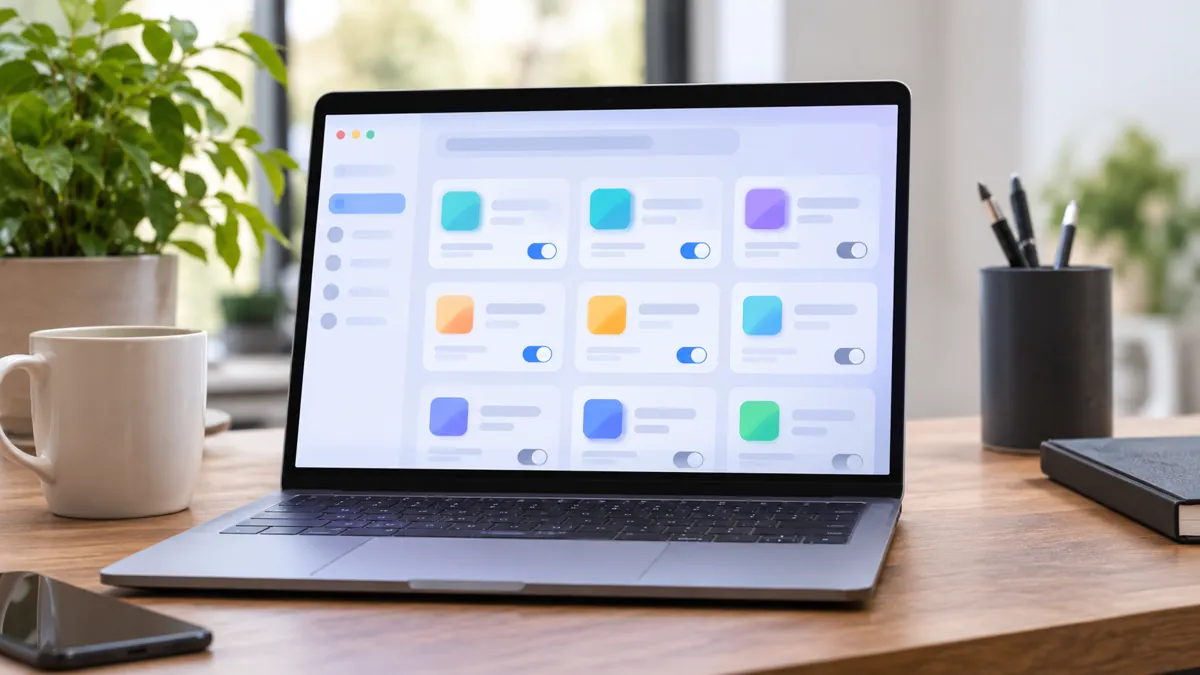
A bare WordPress install is a fine blogging tool and a weak business website, because it arrives with no contact form, no caching, no SEO controls, and no scheduled backups. Plugins are what close those gaps, one small piece of software at a time, and figuring out which essential WordPress plugins actually earn a spot on your site is the real work here, not the installing itself. The problem is the directory, which lists over 60,000 free plugins while security trackers log newly disclosed vulnerabilities across the ecosystem every single year. So “which plugins do I need” is really two separate questions: which jobs does your site depend on, and which code do you trust to do them.
Here is the short answer I give clients, and it has not changed in years. Cover six jobs first: SEO, forms, security, backups, performance, and analytics. Then add plugins only when a specific need shows up, not before, because every plugin you install without a reason is a plugin you will eventually have to justify or clean up. Everything below explains how to choose, how to install, and what each pick actually costs you.
What Is a WordPress Plugin, and Why Do Essential WordPress Plugins Matter?
A plugin is a package of code that you drop into your site to add a feature or extend one that already exists, which means no theme editing, no custom functions file, and no developer invoice required. Think of plugins the way you think of apps on a phone: the phone works without them, each app does one job well, and the more you install, the more you notice the battery drain.

WordPress core was deliberately built lean, shipping as a blogging platform and leaving eCommerce, caching, and security hardening to extensions, which is why a clean install has no shop functionality at all. You add WooCommerce only when you need to sell something, and not a moment before.
The distinction that trips people up is this: a theme controls how your site looks, a plugin controls what it does. A theme handles layout, fonts, and colors, while a plugin adds a form, a sitemap, or a backup schedule. And you run one theme at a time but as many plugins as you can justify, which in practice is fewer than most people think.
That last part is where sites get into trouble, because a plugin is not free just because the download is. Every active plugin adds PHP execution time, database queries, and often CSS and JavaScript on every single page load, so you are paying in milliseconds and in attack surface even when the plugin does exactly what it promised.
How to Tell a Good Plugin From a Liability
Before you install anything, run it through a filter, since this takes about three minutes and saves months of regret later.

Check the last update date first. A plugin untouched for more than a year is a problem, because keeping core, plugins, and themes updated is one of the most important things you can do for security. And it is worth choosing extensions that actively receive updates rather than ones that have gone quiet. Many listed plugins have not been updated in years, and while inactivity does not automatically mean a plugin is unsafe, it does mean nobody is watching anymore.
Look at active installations next, then discount that number somewhat, because installation count is a useful signal and not a verdict. Many listed plugins have only a small number of active installs, and relatively few reach a million or more. So a popular plugin gets more eyes on its code, which cuts both ways: more scrutiny, but also a bigger target.
Read the support forum instead of trusting the star rating. Sort by recent topics and ask whether questions are getting answered or compatibility complaints are piling up, because a 4.8-star plugin with a dead support forum is worse off than a 4.3-star plugin with a developer who actually replies.
Check compatibility with your WordPress and PHP versions, since the plugin page states both plainly, and if your host runs PHP 8.3 while the plugin was only tested up to 8.0, that is essentially a coin flip. Open the changelog too. Regular, detailed entries mean active development, while a changelog that jumps from version 2.1 to 3.0 with “minor fixes” after eighteen months means the developer came back from a long nap.
Think, finally, about what the plugin can access, because plugins run with your site’s permissions, and one that requests broad database or customer-data access for a job that should not need it deserves a second look, along with a look at its privacy policy if it sends data anywhere. If you already have a shortlist and just want the picks, skip ahead; if you are still deciding whether a plugin is worth installing at all, keep reading.
The Essential WordPress Plugins, by Job
Best WordPress SEO Plugin
Search visibility does not happen by accident, and an SEO plugin is the tool that makes the mechanics manageable, handling the unglamorous parts: meta titles, meta descriptions, XML sitemaps, schema markup, and canonical tags.
Yoast SEO is the default choice for most sites, with over 10 million active installs. And the free version covers what a standard site needs while Premium adds redirect management and internal linking suggestions on top of that. Rank Math is the strongest free alternative available, bundling schema markup, Search Console integration, and 404 monitoring into the free tier. And it can import your Yoast settings in one click, though its settings panel has more knobs, and more knobs means a longer setup.
Here is the part most plugin roundups skip entirely: an SEO plugin does almost nothing for you without a strategy behind it. It will not pick your keywords, and it will not write better content for you. It will nag you about keyphrase density until you learn to ignore it. Pick one and stick with it, because running Yoast and Rank Math together produces duplicate meta tags, and Google will pick one for you whether you like it or not.
Best WordPress Cache and Performance Plugin
Google’s Core Web Vitals are a confirmed ranking signal, with Largest Contentful Paint needing to land under 2.5 seconds and Cumulative Layout Shift under 0.1, and caching is how most sites get there. LiteSpeed Cache is free and the fastest option when your host runs LiteSpeed servers, since it unlocks server-level caching that no plugin can replicate on its own, though on Apache or Nginx it falls back to a basic cache that other plugins match just fine. So check with your host before you install it.
WP Rocket starts at $59 per year for one site and requires almost no configuration to show results, covering page cache, lazy loading, database cleanup, and Google Fonts optimization in one package. The catch is the price, and on LiteSpeed servers it leaves performance on the table that LiteSpeed Cache would claim for free. So it is worth it mainly if you are on shared hosting and want speed without learning caching from scratch. Do not run two caching plugins, ever, because they fight each other, and the symptom is a site that loads slower than it did before you installed either one.
Best WordPress Security Plugin
WordPress powers over 43% of all websites, which makes it the most targeted CMS on the internet, and security plugins layer on top of what your host already does rather than replacing it. Wordfence is the most installed option, with over 5 million active sites. And it includes a web application firewall, malware scanner, login security, and two-factor authentication, though the free tier gets firewall rules with a 30-day delay compared to premium.
Sucuri takes a different approach, running a cloud-based firewall that filters traffic before it reaches your server, which is an advantage under attack and a dependency the rest of the time: if Sucuri’s service has a bad day, so does your site. The downside of Wordfence is resource use, since its malware scan is heavy, and on cheap shared hosting it can spike CPU and get your account throttled. So if your host already includes server-level malware scanning, you can often disable the plugin’s scanner and keep only the firewall and login protection.
Two-factor authentication deserves its own mention here, because it is the most effective single defense against credential-stuffing attacks, and both Wordfence and dedicated plugins like WP 2FA provide it. If you run Wordfence, you already have it, so do not install both.
Best WordPress Backup Plugin
Backups are a separate risk layer from security, not a substitute for it, since a firewall stops some attacks while a backup is what saves you when one gets through, or when you fat-finger a database update at 11pm. UpdraftPlus is the most widely used free option, scheduling automatic backups to remote storage, Google Drive, Dropbox, S3, and others, which matters more than any feature list ever could, because a backup stored on the same server as your site is not a backup.
All-in-One WP Migration is built more for moving sites than for routine protection, but it handles full exports cleanly and is the tool I would reach for when cloning a site to staging. The real cost here is discipline, because a backup you have never restored is a hope, not a plan. Restore one to a staging environment every few months and confirm it actually works, and if your host already takes daily snapshots, check what they cover before adding a plugin that duplicates the job.
Best WordPress Contact Form Plugin
WordPress has no built-in form functionality, so every site that wants inbound messages needs a form plugin of some kind. WPForms uses a drag-and-drop builder with pre-built templates, and the free version handles a basic contact form and email notifications, while Premium unlocks multi-page forms, payment integrations, and survey functionality starting around $39.50 per year.
Gravity Forms is the heavier, more flexible option, handling conditional logic, complex integrations, and business process automation that WPForms Lite cannot touch, and it is priced for businesses rather than hobby blogs. One warning applies to every form plugin equally: a form plugin does not guarantee email delivery. WordPress’s default mail function gets flagged as spam by most providers. So you need an SMTP plugin or a transactional email service, plus SPF, DKIM, and DMARC records on your domain, because skipping that step means spending a week wondering why nobody is contacting you.
Best WordPress Analytics Plugin
You cannot improve what you do not measure, and the WordPress dashboard does not tell you much on its own. MonsterInsights connects Google Analytics to your dashboard and shows sessions, traffic sources, and top pages without making you learn the Analytics interface, starting around $99.60 per year with a free tier that covers basics.
The trade-off is real, since every analytics plugin adds a script to your pages, and that script costs load time, so if you are chasing a sub-2.5-second LCP, audit what your analytics setup is actually costing you. Sometimes pasting the Google tag into your theme header is the lighter answer.
How to Install a WordPress Plugin
There are two paths, and both are quick. From the WordPress.org directory, go to Plugins, then Add New, search by name, click Install Now, then Activate, and that is the whole process for free plugins. From a third-party developer, download the .zip file from the vendor, then go to Plugins, Add New, Upload Plugin, choose the file, and install it from there, which is how premium plugins like WP Rocket and Gravity Forms arrive.

Then configure it, since most plugins add a settings page under the Plugins menu or their own top-level menu item, and some need an API key or account connection before they do anything useful at all. A word on updates: automatic updates are fine for trusted, actively maintained plugins, especially for security patches. But on a site that takes payments or handles customer data, test major version updates on staging first, and update one major component at a time so you know exactly what broke when something does.
The Plugin Habits That Actually Protect Your Site
Installing the right plugins is half the job, and the other half is not letting them pile up over time. Do not run two plugins that do the same thing, because two SEO plugins produce duplicate meta tags, two caching plugins produce a slower site, and two security plugins produce firewall conflicts and doubled server load. So pick one per job and retire the rest.
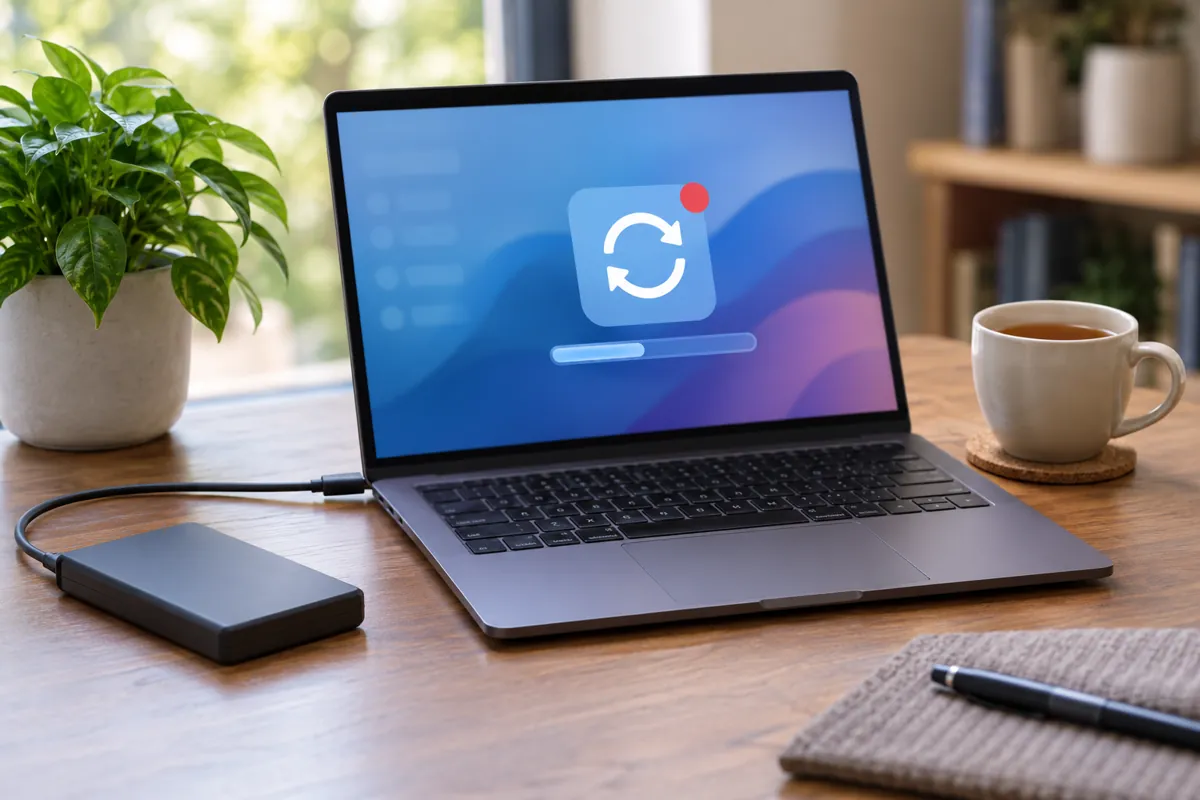
Deactivate and delete what you do not use, since a deactivated plugin still sits on your server, still needs updating, and still counts as attack surface. And if you have stopped using it, remove it, checking first whether it deletes its own data on uninstall, because some plugins clear out settings and custom tables while others leave everything behind. Review your stack quarterly: open your plugin list and ask what each one does and whether you would install it today, knowing what you know now, because anything you cannot answer for gets removed. And this takes fifteen minutes while preventing the slow accumulation that turns a fast site into a slow one.
Measure before and after. Record your page load time and Core Web Vitals before installing something new, then retest a representative page afterward, because if the numbers moved the wrong way, you have found your culprit. Watch for lock-in as well, since if a plugin stores your content in proprietary shortcodes, blocks, or a hosted service, removing it later means rebuilding pages from scratch. So check whether you can export your data cleanly before you commit.
Know when you do not need a plugin at all. If WordPress core, your theme, your host, or a small code snippet already handles something, adding a plugin just adds an update you have to maintain forever, and server-level caching, host-provided backups, and theme-level SEO controls are all common cases where the plugin is redundant. Accept, too, that some questions simply do not have clean answers: whether your specific stack performs better with LiteSpeed Cache or WP Rocket depends on your host, your theme, and your page builder. So test it yourself, because the recommendation that works for a WooCommerce store with 4,000 products is not the one that works for a five-page service site, and no amount of reading substitutes for actually checking.
Frequently Asked Questions
What should I check before installing a WordPress plugin? Last update date, compatibility with your WordPress and PHP versions, active install count, recent support forum activity, changelog quality, and developer reputation all matter. And if the plugin sends data anywhere, read the privacy policy, then confirm you have a recent backup before you activate anything new.
How do I know if a plugin has been abandoned? Long gaps between updates, unanswered support threads, unresolved compatibility complaints, and obsolete dependencies are the warning signs. So if it is no longer needed, delete it rather than just deactivating it, and if you depend on it, start looking for a maintained replacement now, not after it breaks on you.
Are inactive plugins a security risk? Yes, when they stay installed and stop receiving updates, because a deactivated plugin’s files are still sitting on your server. Delete anything you are not using.
Can too many plugins slow down my site? Plugin count alone is not the deciding factor here, since code quality, front-end assets, database queries, external API calls, and how often the plugin runs matter far more, and one badly built plugin that loads assets on every page will hurt more than ten lightweight ones that only run in the admin, so measure rather than guess.
Can two plugins conflict with each other? Yes, and it is common, because conflicts usually show up when plugins modify the same feature, load overlapping scripts, or use incompatible JavaScript libraries, with checkout and authentication flows as the usual casualties. So if something breaks after an install, deactivate the new plugin first.
Should I use one all-in-one plugin suite or separate plugins? Both approaches work. Suites reduce the number of vendors you are managing, but you need to be able to disable unused modules. And you are tying several site functions to one company at once, while single-purpose plugins give you flexibility at the cost of more maintenance, so judge by reliability and performance, not by count.
What plugins are needed for WooCommerce? Backups, security, performance optimization, and transactional email deliverability come first. And then add only what your store model needs, such as subscriptions, bookings, or multilingual support, testing payment, shipping, tax, and checkout together after every plugin change, because a plugin compatible with WordPress is not automatically compatible with WooCommerce.
Should I use an SEO plugin if my theme already handles SEO? Not necessarily, since the risk is duplicate title tags, canonical tags, schema, sitemaps, and Open Graph output fighting each other, so pick one source of truth and turn the other off completely.
Are plugins from outside WordPress.org safe? They can be, particularly from established commercial developers, but you are taking on more verification work around provenance, licensing, how updates get delivered, support quality, and malware risk, so buy from the developer’s own site, not a reseller.
What happens to my content if I delete a plugin? It depends entirely on the plugin, since some remove settings and custom database tables on uninstall while others leave everything behind. So check the plugin’s documentation and export tools before deleting, especially if it created content types or shortcodes you still use.
Do WordPress security plugins prevent every hack? No, and nobody selling one will tell you otherwise if they are being honest, because they complement timely updates, least-privilege user accounts, strong authentication, backups, secure hosting, and monitoring, and no single plugin replaces that whole set.
The Short List Worth Keeping
Six jobs, six plugins, and a habit of reviewing them: that is genuinely the whole framework, and it holds up whether you run a five-page site or a store with thousands of products. Start with one SEO plugin, one form plugin, one security plugin, one backup plugin, one performance plugin, and one way to see your traffic, then add everything else only when a real need shows up, and delete anything that stops earning its place on your site.
The plugin directory will keep growing, and so will the vulnerability counts tracked against it every year. What protects you is not picking the perfect stack on day one. It is running a lean one and keeping it current, installing deliberately, updating on a schedule, and testing before you trust.